

File Comparison

Compare two files or code snippets, identify changes line by line, and selectively move changes between them.

  • Free daily uses
  • Texts are never stored
  • No sign-up needed

Plan: FreeView packages →

Comparison options

Each click on Compare counts as one use. Moving changes, undoing and changing options afterwards is free for 30 minutes. Up to 1 MB per side. Guests are limited per network (IP address). Log in to track your own limit.

Left / Original

Right / Target

Today: 0 / 10

Guide

How to compare two files

Five quick steps, from pasting your text to taking the result with you.

  1. Add your two versions

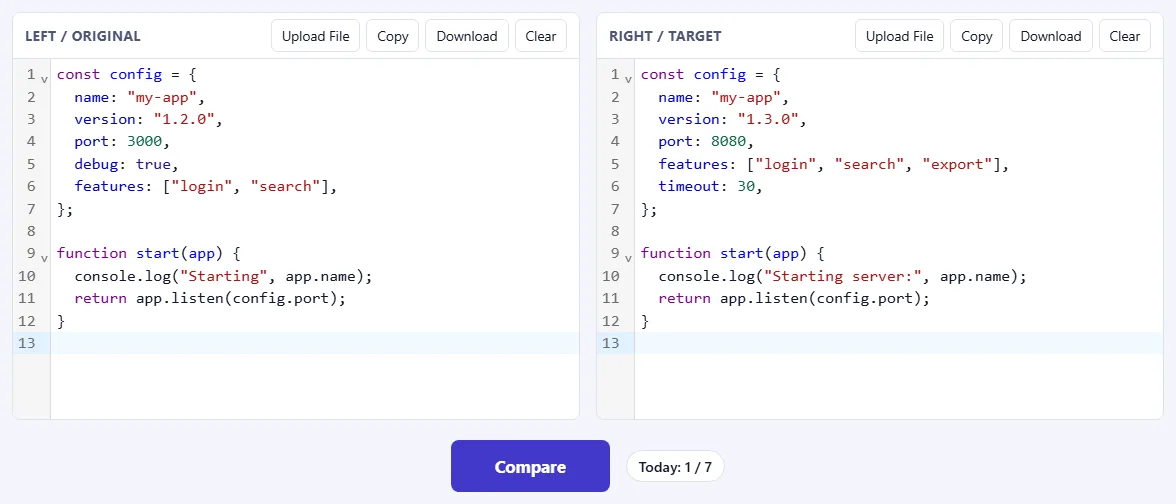
    Paste the original text into Left / Original and the new version into Right / Target. You can also click Upload File on either side to load a file from your computer. Each editor has its own Copy, Download and Clear buttons.

    Two code editors side by side: Left / Original and Right / Target, each with Upload File, Copy, Download and Clear buttons, and the Compare button below.Two code editors side by side: Left / Original and Right / Target, each with Upload File, Copy, Download and Clear buttons, and the Compare button below.
  2. Pick a language and options

    Choose the Language to get syntax highlighting. Under Comparison options, tick Ignore whitespace, Ignore line endings or Ignore case to hide differences that don't matter, such as changed indentation.

    The toolbar with Undo change, Redo change, Swap sides, Clear Both, Reset Comparison, the Language menu and the comparison options.The toolbar with Undo change, Redo change, Swap sides, Clear Both, Reset Comparison, the Language menu and the comparison options.
  3. Click Compare

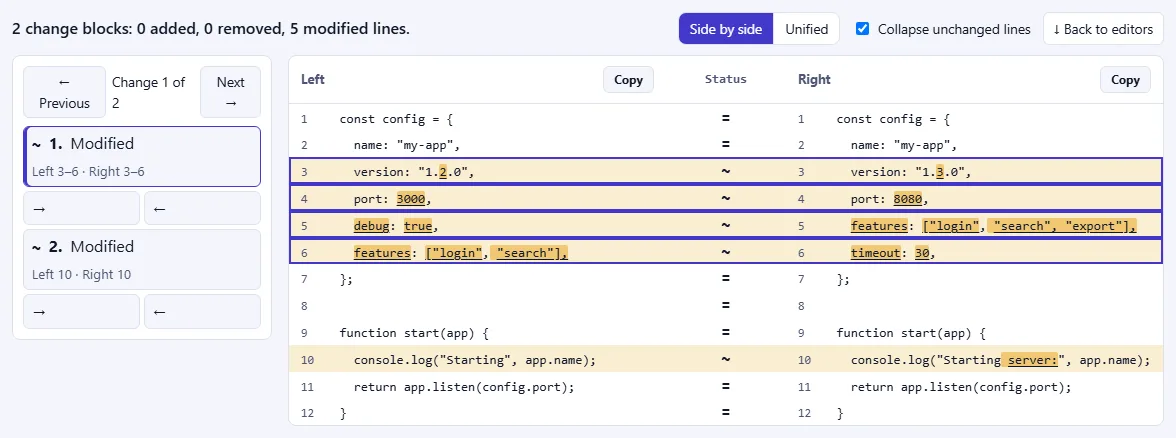
    The result appears above the editors with a summary of what changed. Changed lines are highlighted, and the exact characters that differ are marked inside each line. Tick Collapse unchanged lines to hide long stretches that are the same. Each click on Compare counts as one use of your daily limit.

    The comparison result in side-by-side view: a summary line, the list of changes on the left, and highlighted changed lines with the differing characters marked.The comparison result in side-by-side view: a summary line, the list of changes on the left, and highlighted changed lines with the differing characters marked.
  4. Go through the changes and move them

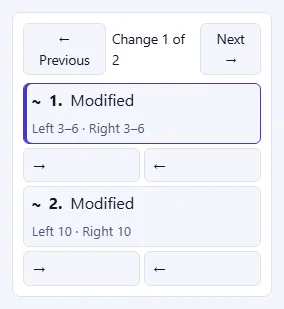
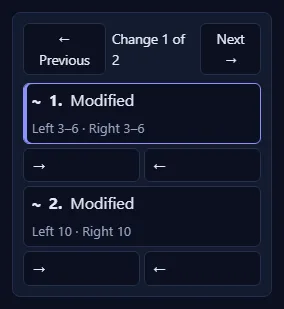
    Use ← Previous and Next →, or click a change in the list, to jump to it. Under each change, the → button copies the left version of that change into the right side, and ← copies the right version into the left. Made a mistake? Use Undo change and Redo change. Moving changes, undoing and changing options are free for 30 minutes after a comparison.

    The change list with Previous and Next buttons, two modified changes, and arrow buttons under each change to move it to the other side.The change list with Previous and Next buttons, two modified changes, and arrow buttons under each change to move it to the other side.
  5. Switch to Unified view, then copy or download

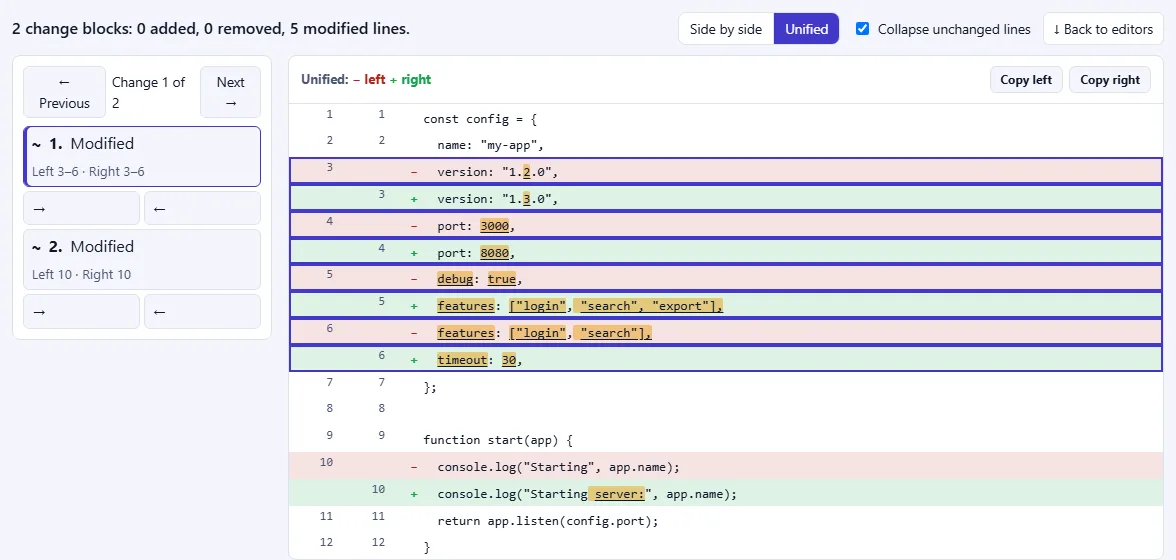
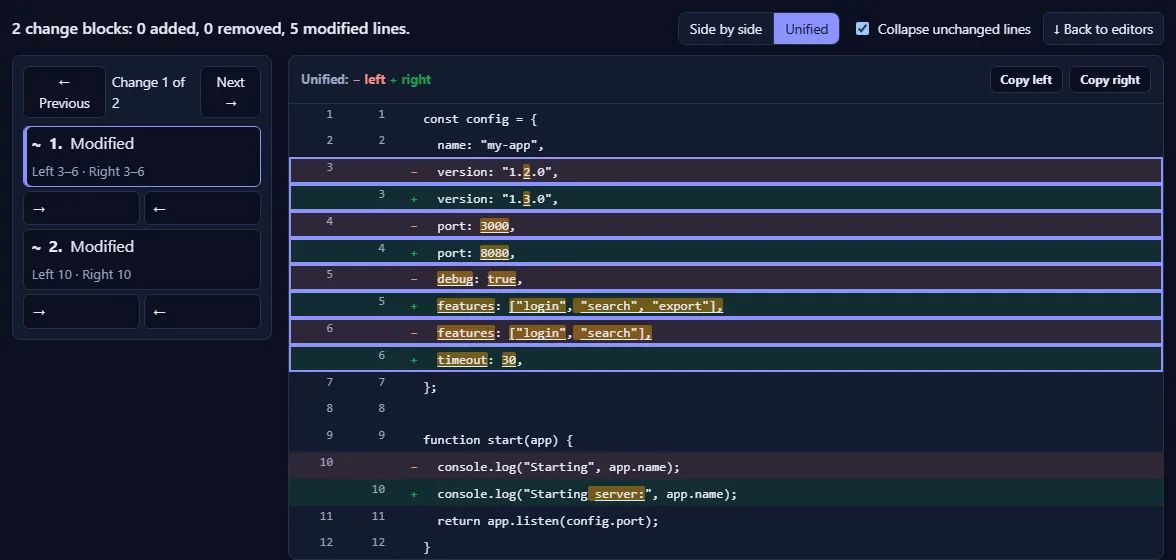
    Side by side shows both versions next to each other. Unified shows them in one column, with removed lines marked − and added lines marked +. Use Copy left or Copy right to take a result with you, or Download from an editor to save it as a file.

    The comparison result in Unified view: removed lines marked with a minus and added lines marked with a plus, with Copy left and Copy right buttons.The comparison result in Unified view: removed lines marked with a minus and added lines marked with a plus, with Copy left and Copy right buttons.

Good to know

  • Swap sidesExchanges the left and right text, so additions become removals and the other way round. You can undo it.
  • Clear Both / ResetClear Both empties the editors (you can undo it). Reset Comparison removes the result and sets the options back to default; your text stays.
  • Back to editorsJumps from the result down to the editors, so you can keep editing and compare again.
  • Edited after comparing?A note tells you the result is out of date. Click Compare again to refresh it.

Frequently asked questions

Is this file comparison tool free?

Yes. You get a number of free comparisons every day, shown next to the Compare button. Each click on Compare counts as one use; moving changes, undoing and changing options afterwards is free for 30 minutes. The allowance resets at 00:00 UTC, and packages with higher limits are available.

Are my files uploaded or stored?

To work out the differences, the two texts are sent to our server, compared in memory and sent back. They are not saved or logged. Please don't paste passwords, keys or other secrets into any online tool, including this one.

Which files can I compare?

Any text: source code, configuration files, JSON, CSV, Markdown or plain text. Paste it into the two editors, or upload files such as .txt, .md, .js, .jsx, .ts, .tsx, .json, .html, .css, .scss, .py, .java and more. Choose a language to get syntax highlighting.

How large can the files be?

Each side can be up to 977 KB and 20,000 lines. For larger files, compare them in parts.

Can I ignore whitespace, line endings or letter case?

Yes. Tick Ignore whitespace, Ignore line endings or Ignore case under Comparison options to hide differences that don't matter, such as changed indentation or Windows versus Unix line endings.

Can I copy a change from one side to the other?

Yes. Every change in the list has → and ← buttons that copy that change to the right or the left side. Undo change and Redo change take you back, and Swap sides exchanges the two texts.

What is the difference between side-by-side and unified view?

Side by side shows the two versions next to each other with the changed characters highlighted. Unified shows them in one column, with removed lines marked − and added lines marked +, like a code review.