





AVIF to PDF Converter

Turn AVIF images into a PDF that opens everywhere, even on devices that cannot show AVIF.

  • Free daily uses
  • Runs in your browser
  • No sign-up needed

Plan: FreeView packages →

Made on your device. Your images are not uploaded to any server.

25 of 25 conversions left today

Drag and drop your AVIF images here

JPG, PNG, HEIC, WebP, AVIF, GIF, BMP · up to 23.8 MB each · 50 at a time · saved as PDF

Lower quality or a smaller image size gives a smaller PDF. Transparent areas become white, and photo details such as location are removed. Each image counts once; changing these settings and creating the PDF again is free.

Guide

How to convert AVIF to PDF

Four simple steps, from adding your pictures to downloading the PDF.

  1. Add your AVIF images

    Drag your files onto the box, or click Choose AVIF files. You can mix JPG, PNG, HEIC, WebP, AVIF, GIF and BMP, up to 50 at once. Everything happens on your device; nothing is uploaded.

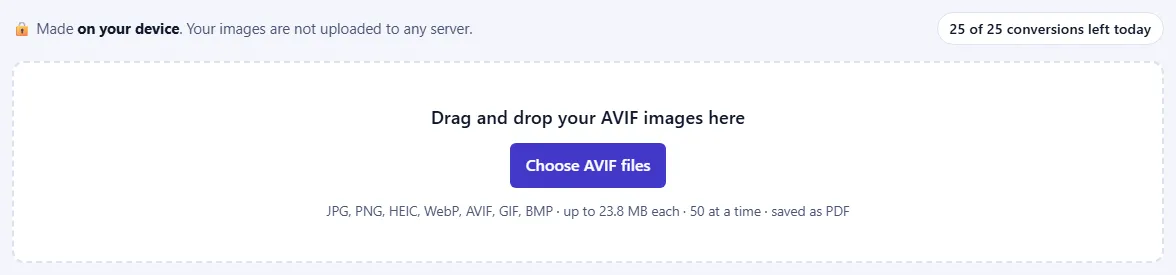
    The upload box with a Choose button and the list of accepted formats, and a counter of conversions left today.The upload box with a Choose button and the list of accepted formats, and a counter of conversions left today.
  2. Put the pages in order

    Each picture becomes one page, in the order shown. Use ↑ and ↓ to move a picture, or Remove to take it out.

    A numbered list of pictures with up and down arrow buttons and a Remove link on each.A numbered list of pictures with up and down arrow buttons and a Remove link on each.
  3. Choose the page settings

    Make one PDF with all images or one PDF per image. Pick A4, US Letter or Fit to image, the orientation and the margin. Lower the image size or quality for a smaller file.

    The PDF settings: Output, Page size, Orientation, Margin, Image size and a Quality slider.The PDF settings: Output, Page size, Orientation, Margin, Image size and a Quality slider.
  4. Create and download your PDF

    Click Create PDF. When it's ready you'll see the file name, number of pages and size. Click Download, or Download all as ZIP when you made one PDF per image.

    The Create PDF button and a “Your PDF is ready” panel with the PDF's name, page count, size and a Download button.The Create PDF button and a “Your PDF is ready” panel with the PDF's name, page count, size and a Download button.

Good to know

  • Change settings for freeEach image counts once. Changing the page size, order or margins and creating the PDF again doesn't use more.
  • Sharp small imagesSmall pictures keep their natural size on the page instead of being stretched and blurred.
  • Transparency and metadataTransparent areas become white, and location and camera details are not copied into the PDF.

Frequently asked questions

Is this AVIF to PDF converter free and private?

Yes. The PDF is made inside your browser, so your AVIF images are never uploaded to a server. Our server only records how many were converted, along with your network address, so that the daily limit can be applied.

My device can't open AVIF files. Will this work?

It works if your browser can read AVIF, which current versions of Chrome, Edge, Firefox and Safari can. If it can't, the converter tells you, and nothing is counted. The PDF you get opens everywhere.

Why is the PDF bigger than my AVIF files?

AVIF compresses very well, while the PDF stores each picture as JPEG. Lower the quality or choose a smaller image size to make the PDF smaller.

Can I combine several AVIF images into one PDF?

Yes. Add up to 50 AVIF images at a time, put them in order with the arrow buttons, and they become the pages of one PDF. You can also make a separate PDF for each picture instead.

Can I mix AVIF with other image types?

Yes. This page accepts JPG, PNG, HEIC, WebP, AVIF, GIF and BMP files, and you can mix them in one PDF.

Which page size should I choose?

Choose A4 or US Letter for printing or standard documents; each picture is scaled to fit the page and centred, and the orientation follows the picture unless you pick one. "Fit to image" makes each page exactly the size of its picture, with no border.

How do I make my AVIF PDF smaller?

Lower the quality or choose a smaller image size before you press Create PDF. A quality of 75 to 85% usually looks the same and gives a much smaller file.

More PDF converters