Business Card QR Code Generator

Put your contact details in a QR code. When someone scans it, their phone offers to save you as a new contact, with your name, phone numbers, email, company, website and address filled in.

  • Free daily uses
  • Runs in your browser
  • No sign-up needed

Last updated

Plan: FreeView packages →

Made on your device. What you type is not uploaded.

20 of 20 downloads left today

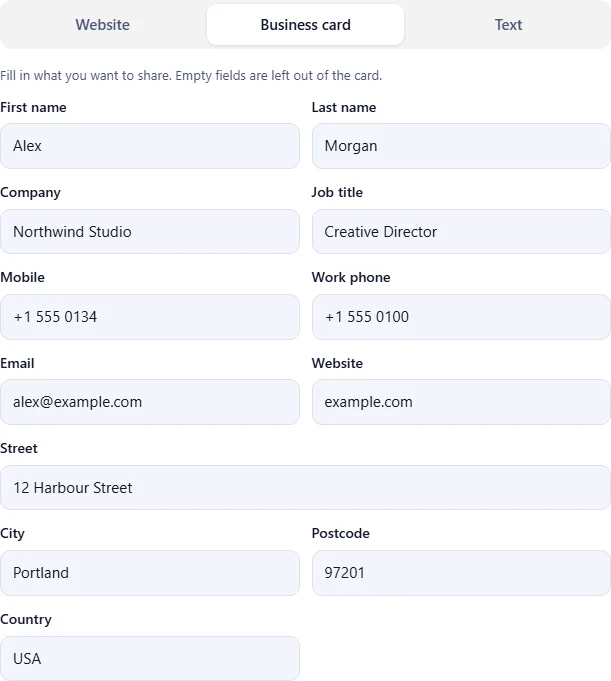
Fill in what you want to share. Empty fields are left out of the card.

Design
Higher levels survive more damage or a bigger logo, but make the code denser.
Preview
Your QR code appears here as you type.

Always scan the code with your phone before you print or share it.

Guide

How to make a business card QR code

Three steps, from your contact details to a code people can save with one scan.

  1. Fill in your details

    Choose Business card and fill in the details you want to share: name, company, job title, phone numbers, email, website and address. Empty fields are left out.

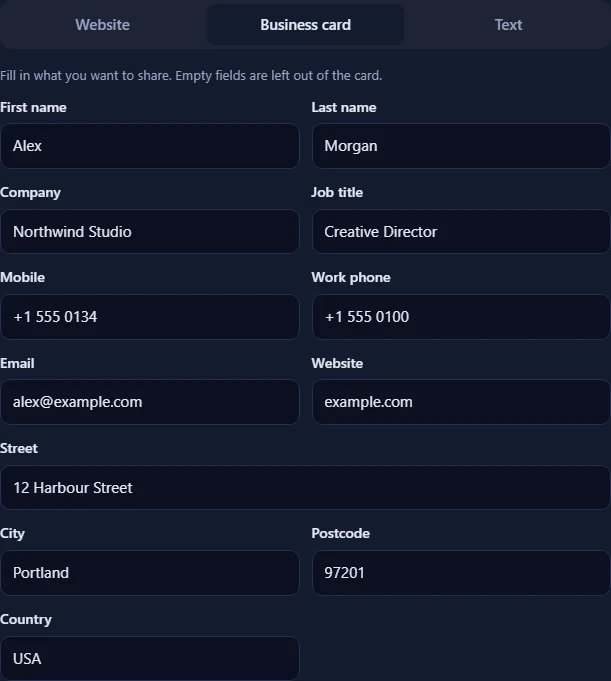
    The Business card tab with name, company, job title, phone, email, website and address fields filled in.The Business card tab with name, company, job title, phone, email, website and address fields filled in.
  2. Choose colours and a logo

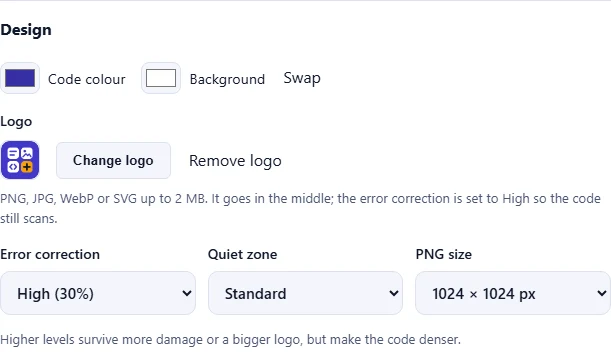
    Under Design, pick the Code colour and Background. Keep the code darker than the background so every phone can read it. Click Add a logo to put your logo in the middle; the error correction switches to High so the code still scans.

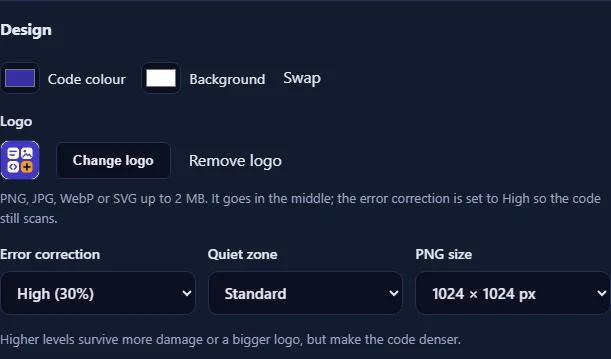
    The Design section with the code and background colour pickers, the Add a logo button, and the error correction, quiet zone and PNG size menus.The Design section with the code and background colour pickers, the Add a logo button, and the error correction, quiet zone and PNG size menus.
  3. Download and test your code

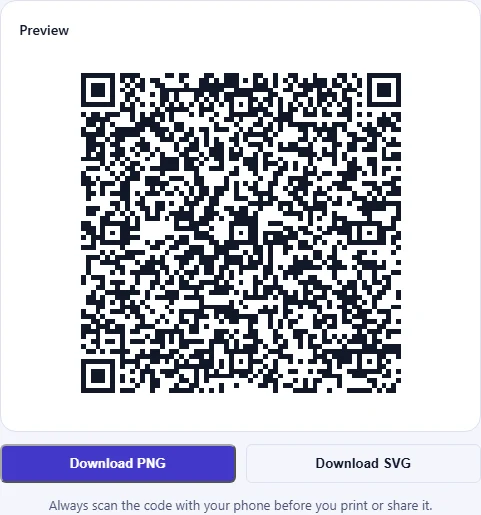
    The preview updates as you type. Click Download PNG for websites and documents, or Download SVG for print. Scan it with your phone to check that it opens your contact card before you share it.

    The QR code preview with Download PNG and Download SVG buttons and a reminder to test the code with a phone.The QR code preview with Download PNG and Download SVG buttons and a reminder to test the code with a phone.

Good to know

  • Nothing is uploadedThe code is made in your browser. What you type and your logo never leave your device.
  • No expiryThe content is stored in the code itself, so it keeps working forever and never depends on our website.
  • Daily usesTyping and previewing are free. Each download counts once towards your daily allowance.

Frequently asked questions

What is a vCard QR code?

A QR code that holds a contact card in the vCard format, the standard that phones and email programs use for contacts. Scanning it shows the details and an option to add them to the phone's contacts, so nobody has to type your number.

Which phones can read it?

The camera app on iPhones and on most Android phones reads vCard QR codes directly; on older Android phones Google Lens does. No extra app is needed.

Which details can I include?

First and last name, company, job title, mobile and work phone, email, website and a work address. Fill in only what you want to share; empty fields are left out of the card.

Why does my code look so dense?

The more details you add, the more squares the code needs. Dense codes scan fine when printed large enough, but on a small business card it helps to leave out optional fields or to choose a lower error correction level.

Can I change my details later?

No. The details are stored in the code itself, so a new phone number needs a new code. The upside: the code never expires and never depends on our website.

Is it free and private?

Yes. The code is made in your browser, so your contact details are never uploaded. Creating and previewing are unlimited; each download counts once towards your free daily allowance.

More QR codes