

XML to CSV Converter

Paste XML to turn its records into a table you can open in Excel or Google Sheets. The converter finds the repeated element, such as each <book>, and makes one row of it, with a column for every attribute and child element.

  • Free daily uses
  • Runs in your browser
  • No sign-up needed

Last updated

Plan: FreeView packages →

Processed in your browser. Your XML is not uploaded.

100 of 100 operations left today
XML input

CSV

Guide

How to convert XML to CSV

Three steps from an XML file to a spreadsheet with one row per record.

  1. Add your XML

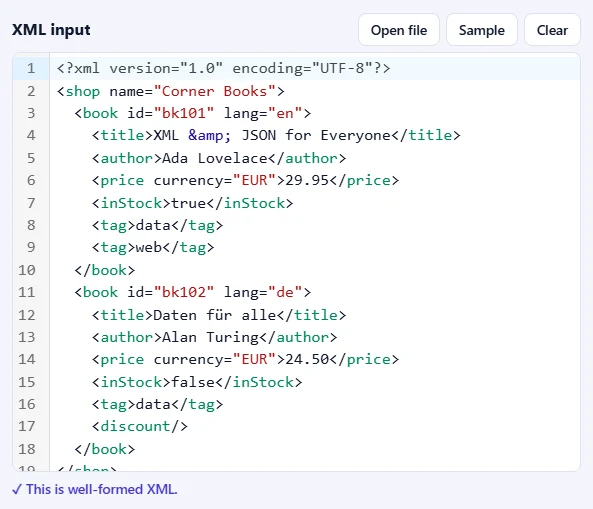
    Paste XML into the XML input box, drop an .xml file onto it, or click Open file. Click Sample to try it with a small shop of two books.

    The XML input box with a sample shop of two books and the message that it is well-formed XML.The XML input box with a sample shop of two books and the message that it is well-formed XML.
  2. Check the options

    One row per shows the repeated element the converter found; pick another one if you need different rows. Choose the Separator and how Repeated elements are written.

    The options bar with One row per set to the book element, the separator, repeated elements and the checkboxes for the header row and formula protection.The options bar with One row per set to the book element, the separator, repeated elements and the checkboxes for the header row and formula protection.
  3. Press Convert to CSV

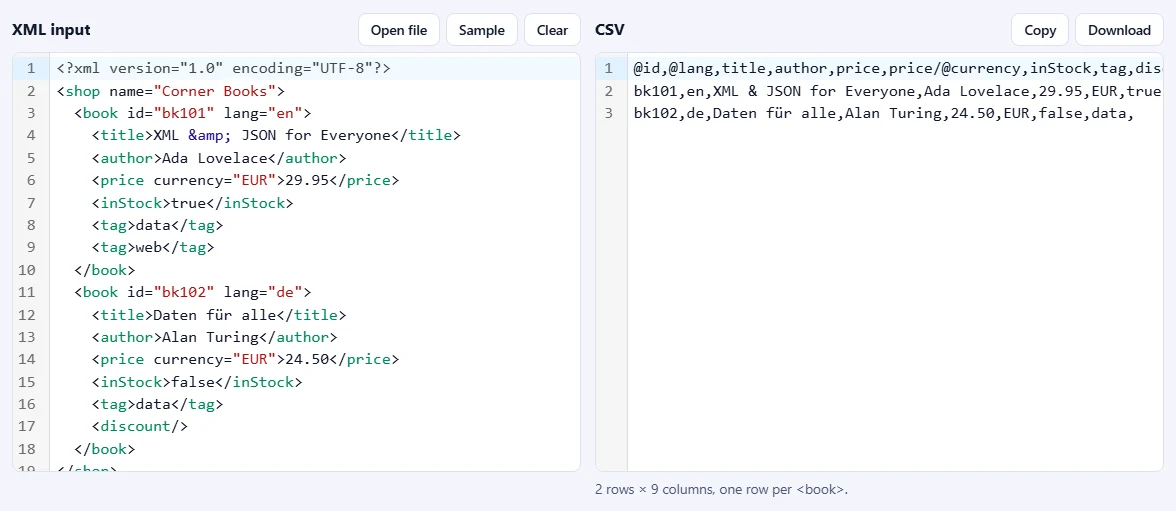
    The CSV appears on the right, with how many rows and columns it has. Download gives you a file that opens straight in Excel or Google Sheets, or use Copy.

    The sample XML on the left and the CSV on the right: a header row with @id, @lang, title, author, price, price/@currency and tag, and one row per book.The sample XML on the left and the CSV on the right: a header row with @id, @lang, title, author, price, price/@currency and tag, and one row per book.

Good to know

  • Nothing is uploadedYour XML is processed in your browser and never leaves your device.
  • Daily usesEach successful run counts as one XML operation. XML with mistakes is never counted.
  • Excel-readyThe download is UTF-8 with a byte order mark, so accents show correctly in Excel.

Frequently asked questions

How does it decide what a row is?

It looks for the element that repeats most, such as <book> inside <catalog> or <item> inside <channel>, and makes one row of each. If you want different rows, choose another element under One row per; every repeated element in the document is listed with how many there are.

How are the columns named?

Like XPath, relative to the row element: an attribute becomes @id, a child element becomes title, a child's attribute becomes price/@currency and a deeper element becomes address/city. Columns appear in the order they are first found, and a record that lacks a field gets an empty cell.

What happens to repeated child elements?

By default their values are joined in one cell, such as "data; web" for two <tag> elements. Choose Separate columns to get tag[1], tag[2] and so on instead, which is easier to filter in a spreadsheet.

Will Excel open the file correctly?

Yes. The download is UTF-8 with a byte order mark, so Excel shows accents and other characters correctly. In countries where Excel expects semicolons, choose Semicolon as the separator. Protect against spreadsheet formulas is on by default, so text starting with = + - or @ can't run as a formula.

Is my XML uploaded or stored?

No. The conversion runs inside your browser, so your data never leaves your device. Our server only records that one operation was done, along with your network address, so the daily limit shown above the tool can be applied.

More XML tools