

CSV to XML Converter

Paste CSV or open a spreadsheet export to turn each row into an XML record. Choose the names of the root and record elements, write values as child elements or attributes, and download well-formed XML.

  • Free daily uses
  • Runs in your browser
  • No sign-up needed

Last updated

Plan: FreeView packages →

Processed in your browser. Your CSV is not uploaded.

100 of 100 operations left today
CSV input

XML

Guide

How to convert CSV to XML

Three steps from a CSV file to well-formed XML with one element per row.

  1. Add your CSV

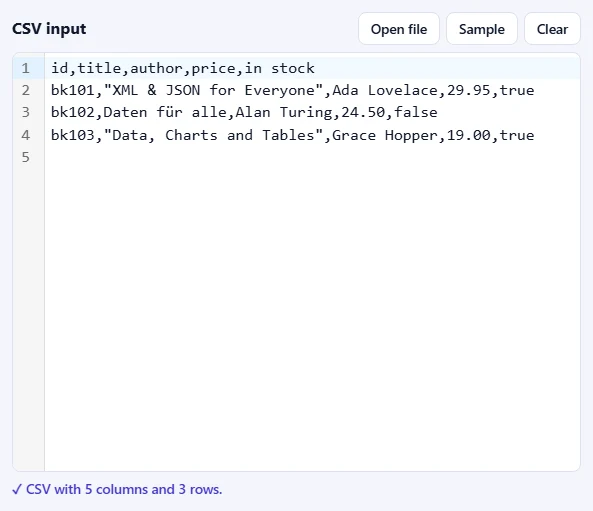
    Paste CSV into the CSV input box, drop a .csv file onto it, or click Open file. Click Sample to try it with three books. The line below the box says how many columns and rows it found.

    The CSV input box with a sample of three books and the message that it is CSV with 5 columns and 3 rows.The CSV input box with a sample of three books and the message that it is CSV with 5 columns and 3 rows.
  2. Choose the options

    Name the Root element and the Record element, and choose Child elements or Attributes under Values as. The Separator is found automatically.

    The options bar with the separator, the root element records, the record element record, values as child elements, the indentation and the checkboxes.The options bar with the separator, the root element records, the record element record, values as child elements, the indentation and the checkboxes.
  3. Press Convert to XML

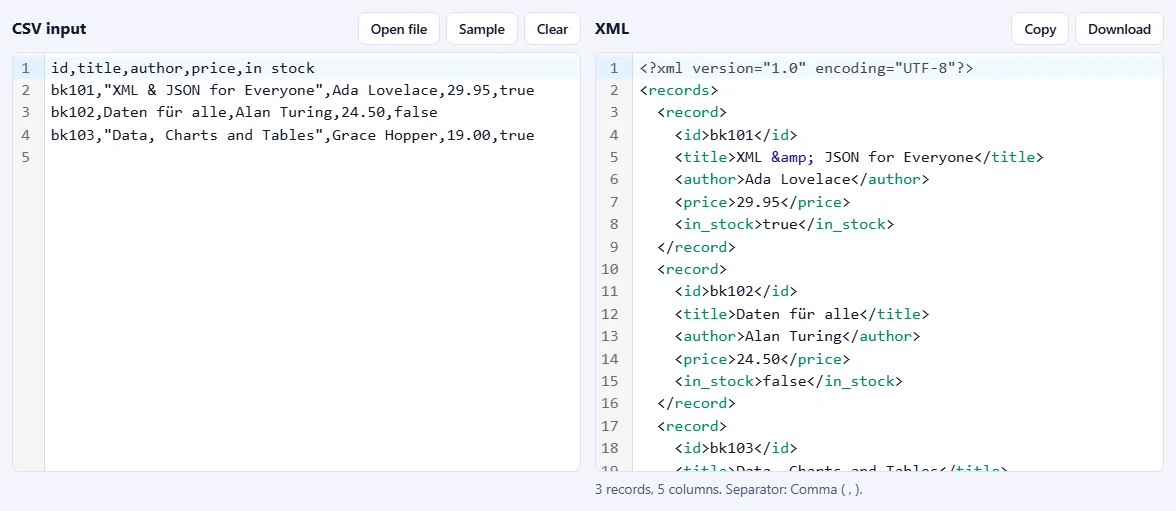
    The XML appears on the right, with one record element per row and a note for any column name that had to change. Download it as an .xml file or use Copy.

    The sample CSV on the left and the XML on the right, with one record element per book and in_stock as the renamed column.The sample CSV on the left and the XML on the right, with one record element per book and in_stock as the renamed column.

Good to know

  • Nothing is uploadedYour CSV is converted in your browser and never leaves your device.
  • Daily usesEach successful conversion counts as one XML operation. A CSV with a mistake is never counted.
  • From a spreadsheetIn Excel or Google Sheets, save or download the sheet as CSV, then open the file here.

Frequently asked questions

How are the XML element names chosen?

The column headings in the first row become the element (or attribute) names. Headings that aren't valid XML names are fixed: spaces and other characters become _, and a name that starts with a digit gets a _ in front, so "in stock" becomes in_stock. A note lists every change. Untick First row has column names to use column1, column2 and so on instead.

Which separator does my file use?

Automatic finds the comma, semicolon, tab or pipe from the first line, so you rarely need to choose. Values in quotes may contain the separator, quotes (written "") and line breaks, exactly as Excel and Google Sheets save them.

Should I choose child elements or attributes?

Child elements, such as <title>…</title>, are the most common and keep long text readable. Attributes, such as <record title="…"/>, give compact XML that some systems expect. Either way, &, < and quotes are escaped correctly.

What happens to empty cells?

By default an empty cell becomes an empty element (<price/>) or an empty attribute (price=""), so every record has the same fields. Tick Leave out empty cells to skip them instead.

Is my CSV uploaded or stored?

No. The conversion runs inside your browser, so your data never leaves your device. Our server only records that one operation was done, along with your network address, so the daily limit shown above the tool can be applied.

More XML tools