HowTo Schema Generator

Describe a step-by-step guide, with its steps, supplies, tools, time and cost, and get HowTo structured data in JSON-LD, ready to paste into your page.

  • Free daily uses
  • Runs in your browser
  • No sign-up needed

Last updated

Plan: FreeView packages →

Made in your browser. What you type is not uploaded.

100 of 100 copies left today
HowTo
Details
Three-letter code, such as USD, EUR or GBP.
Supplies and tools
One per line.
One per line.
Steps
  1. Step 1
Checks2 to fix2 suggestions
  • Details: Title is required.
  • Steps: Add at least 1.
  • Details: Description is recommended by Google.
  • Details: Image URL is recommended by Google.
JSON-LD code

Paste the code into the <head> of the page it describes (or anywhere in its <body>), then test it with Google.

Guide

How to create HowTo structured data

Three steps from a filled-in form to code you can paste into your page.

  1. Fill in the form

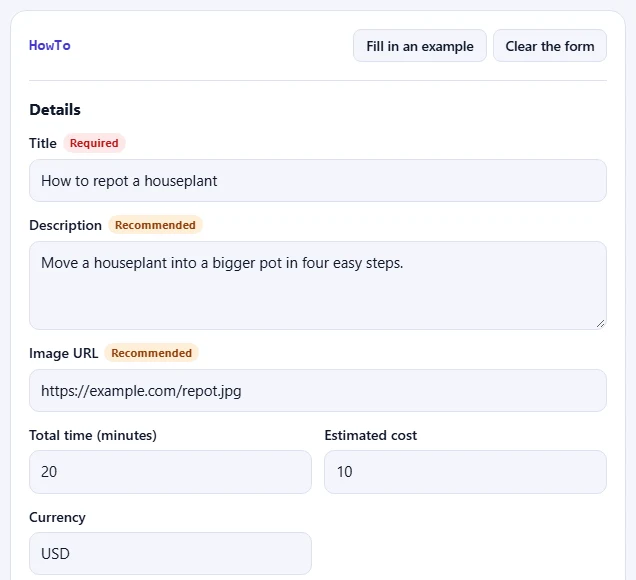
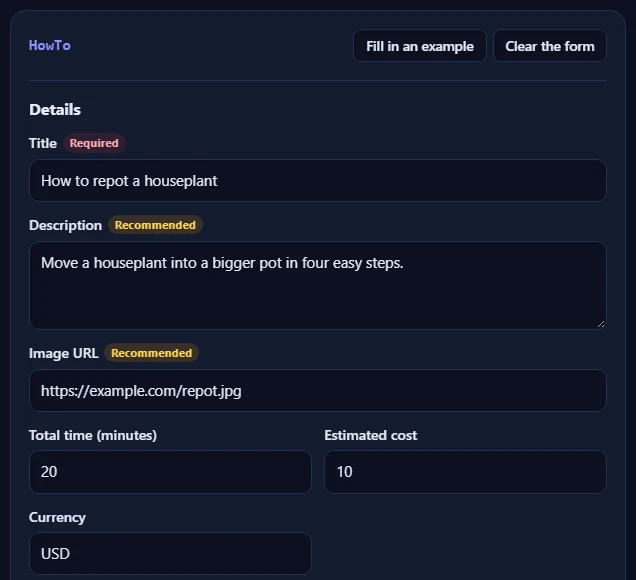
    Fill in the fields for your page. Fields marked Required are needed for Google's rich results; Recommended ones make the result richer. Click Fill in an example to see a complete HowTo.

    The HowTo form filled in with an example.The HowTo form filled in with an example.
  2. Check the problems

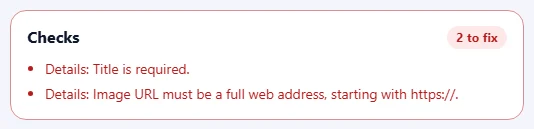
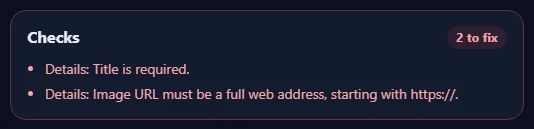
    The Checks box lists anything to fix in red, such as a missing field or a web address without https://, and suggestions in amber. When everything is right, it turns green.

    The Checks box listing problems to fix and suggestions.The Checks box listing problems to fix and suggestions.
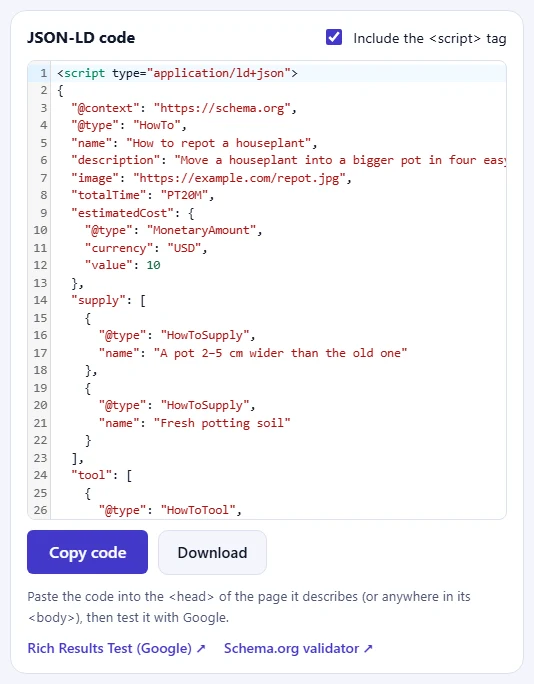
  3. Copy the code

    Click Copy code and paste it into the HTML of your page, then test the page with Google's Rich Results Test.

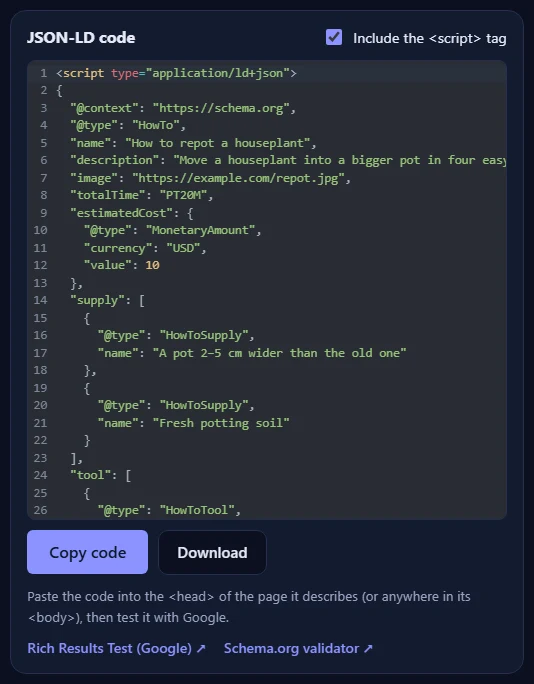
    The JSON-LD code for the HowTo, with the Copy code and Download buttons and links to Google's Rich Results Test and the Schema.org validator.The JSON-LD code for the HowTo, with the Copy code and Download buttons and links to Google's Rich Results Test and the Schema.org validator.

Good to know

  • Nothing is uploadedThe code is made in your browser. What you type never leaves your device.
  • Daily usesEach copy or download of new code counts once. Copying the same code again is free.
  • Match the pageOnly mark up information that visitors can see on the page itself.

Frequently asked questions

Does Google still show HowTo rich results?

No. Google stopped showing HowTo rich results in 2023. The HowTo type is still part of schema.org and is read by other search engines and AI assistants, so it can still describe your guide clearly.

How is the total time written?

Type the time in minutes; the generator writes it in the ISO 8601 format that schema.org expects, such as PT1H30M for 90 minutes.

What is the difference between supplies and tools?

Supplies are used up in the task, such as soil or paint. Tools are needed but not used up, such as a trowel or a brush. Write one per line.

Where do I put the code?

Paste the whole <script type="application/ld+json"> block into the HTML of the page it describes, ideally in the <head>; the <body> works too. In WordPress, use your SEO plugin's custom schema box or a plugin that adds code to the head of one page. Then check the page with Google's Rich Results Test.

Does structured data guarantee rich results?

No. Correct structured data makes a page eligible, but Google decides whether to show a rich result. The information in the code must also be visible on the page itself: don't mark up questions, prices or reviews that visitors can't see.

Is what I type uploaded or stored?

No. The code is made in your browser and nothing you type leaves your device. When you copy or download the code, our server only records that one use happened, so the daily limit can be applied. Copying the same code again is free.

More schema generators