
Frequently asked questions
How do I see exactly what changed?
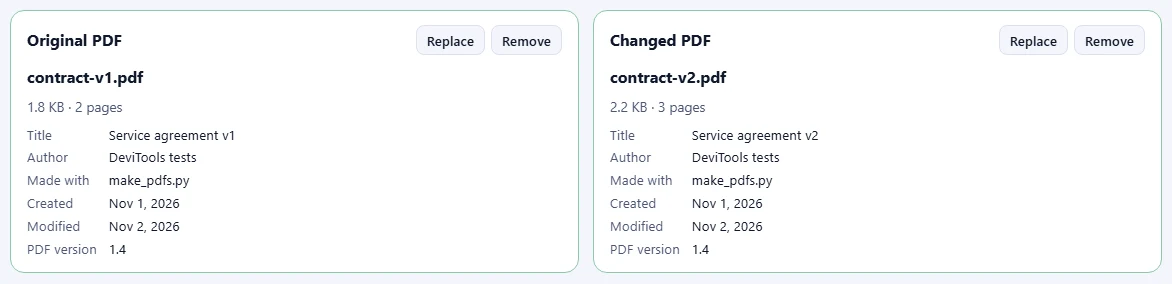
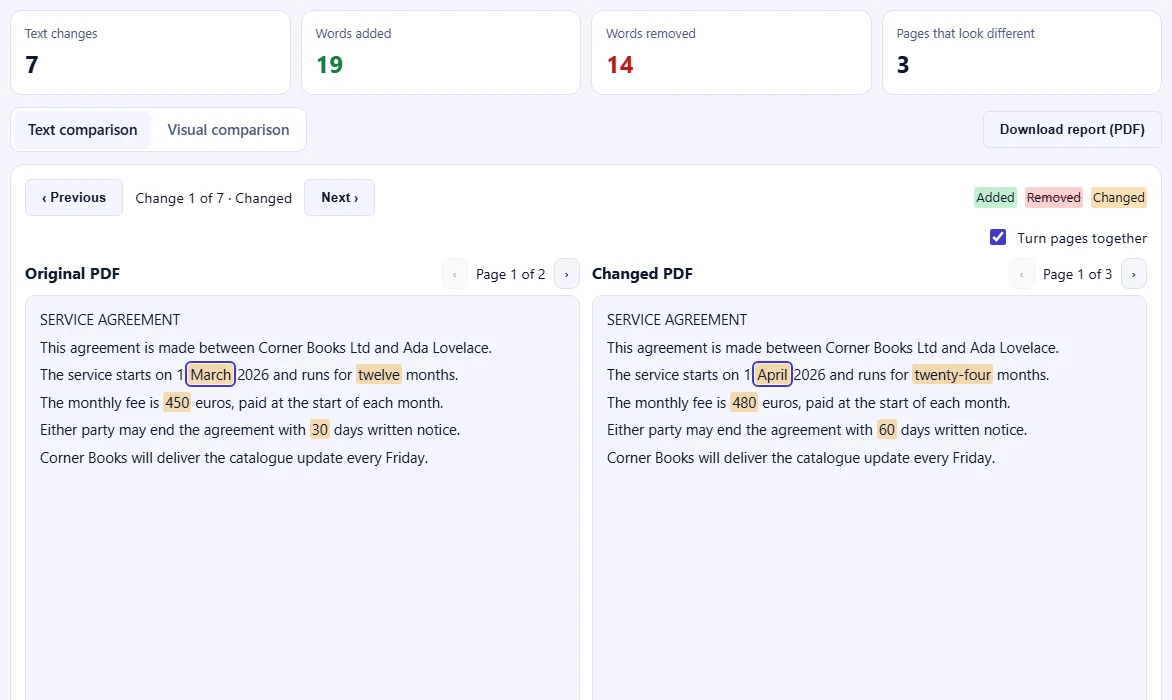
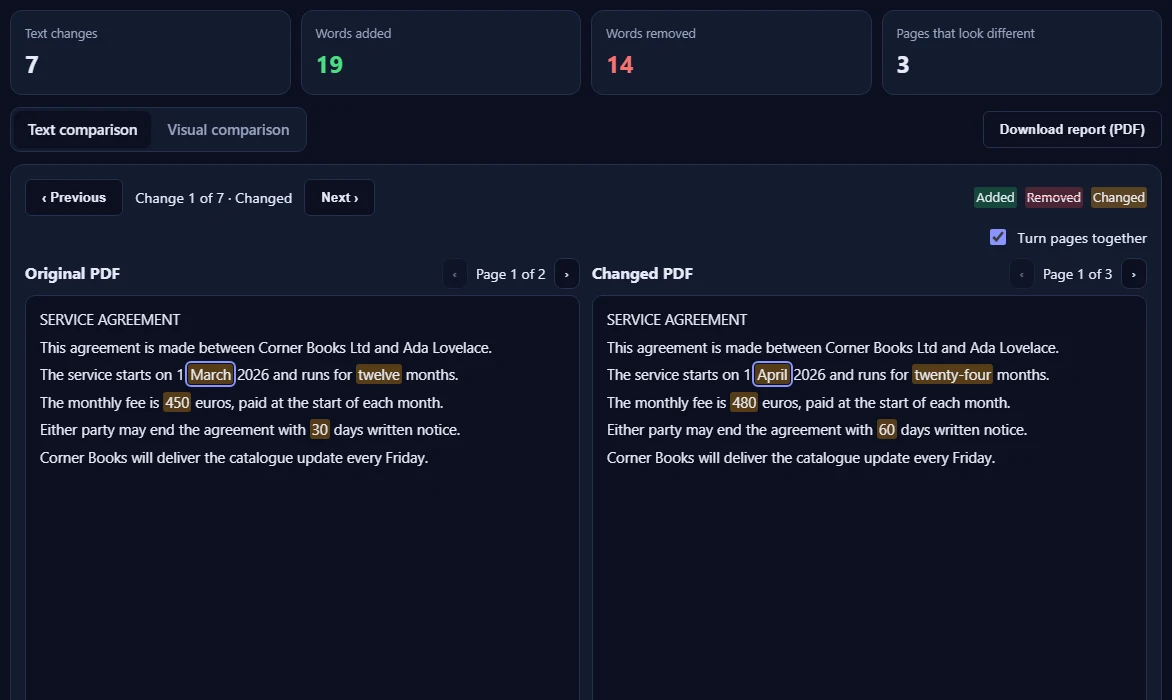
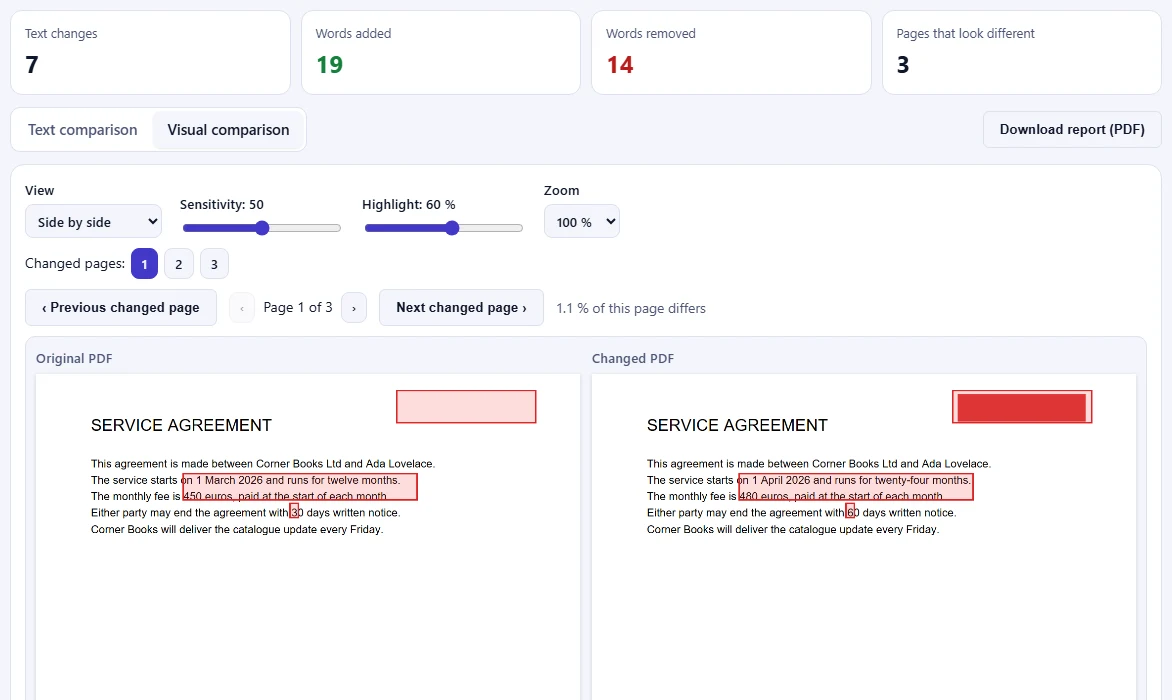
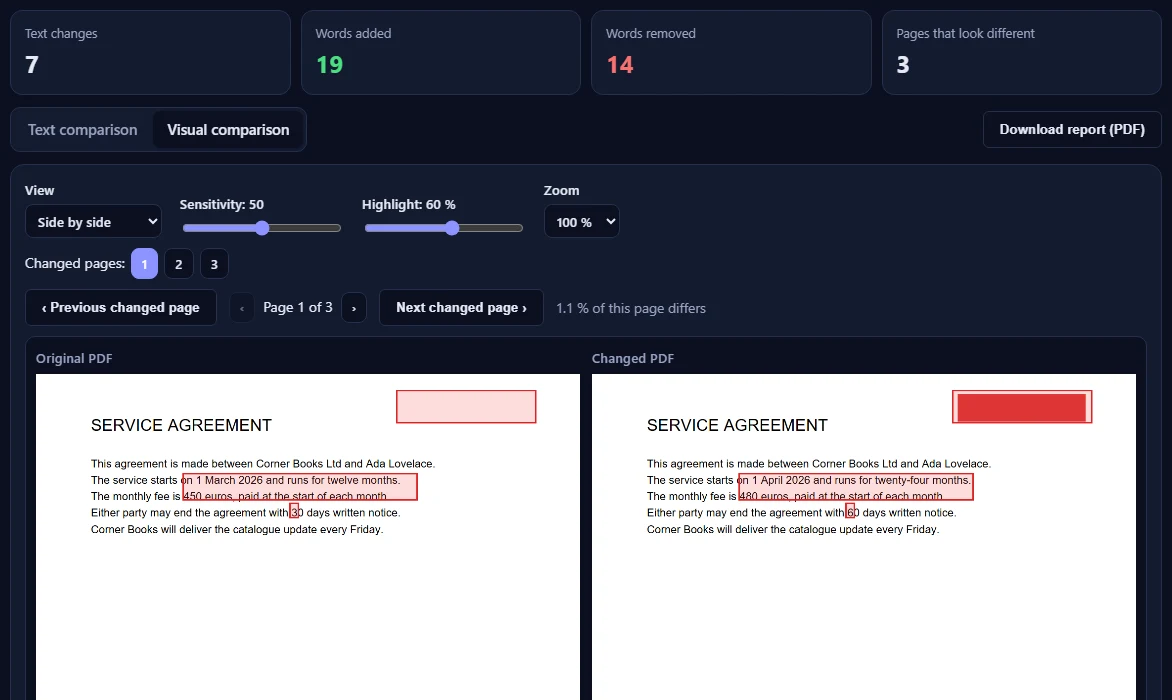
Add the original PDF and the changed one, then click Compare PDFs. Text comparison shows both documents side by side with added words in green, removed words in red and changed words in amber; Previous and Next jump from one change to the next. Visual comparison draws each page and boxes the areas that look different.
What is the difference between text and visual comparison?
Text comparison reads the words, so it finds changed sentences, numbers and names even when the text has moved to another page. Visual comparison looks at the pages as pictures, so it also finds changes text can't show: a new logo, a moved image, other colours or a different layout. Use both for a full check.
Can it compare scanned PDFs?
Scanned pages are pictures without text, so their text can only be compared after OCR (reading text from pictures), which this tool doesn't do. It tells you when a PDF looks scanned. Visual comparison still works and shows where the scanned pages differ.
Does it work with password-protected or large PDFs?
Yes. For a protected PDF, type its password when asked; it is only used in your browser to open the file. Large PDFs are read and drawn one page at a time, with progress and a Cancel button, so long documents work too. If a file is damaged or not a PDF, you see a clear message instead.
Can I save the comparison?
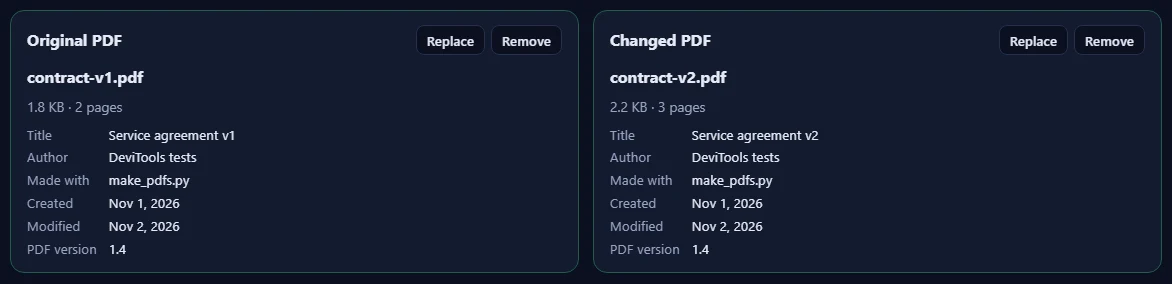
Yes. Download report (PDF) saves a report with both files' details, a summary, every text change as before and after, and the pages that look different side by side with the changes marked.
Are my PDFs uploaded?
No. Both PDFs are read, compared and drawn inside your browser, so they never leave your device. Our server only records that one comparison was made, along with your network address, so the daily limit shown above the tool can be applied.