
Frequently asked questions
How do I get the text out of an image?
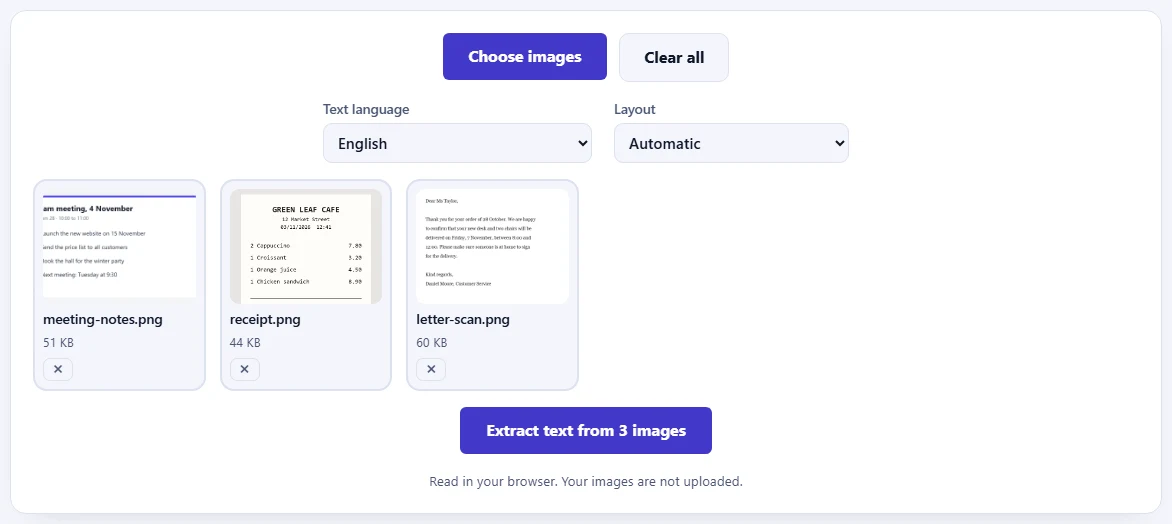
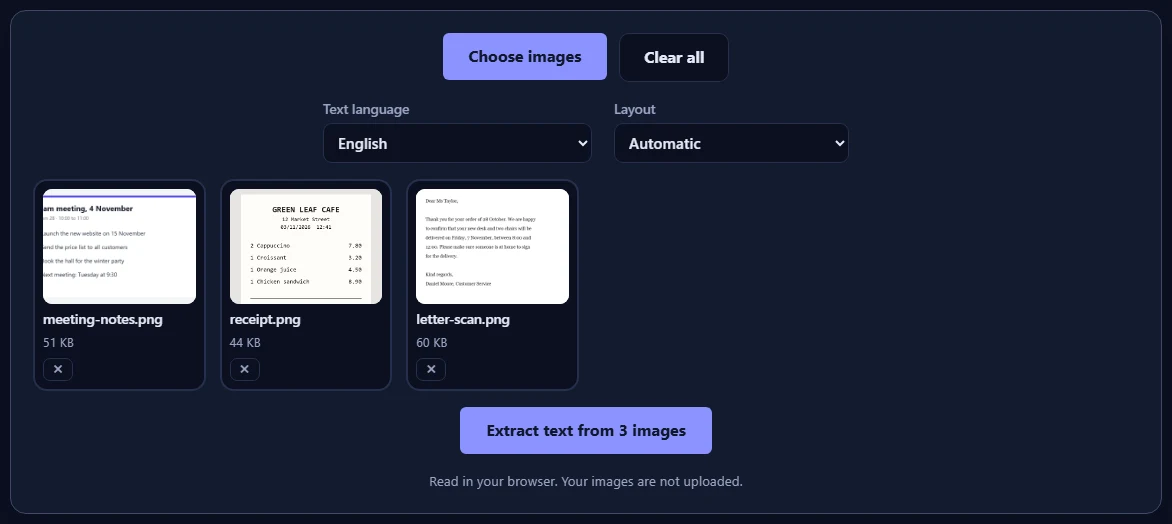
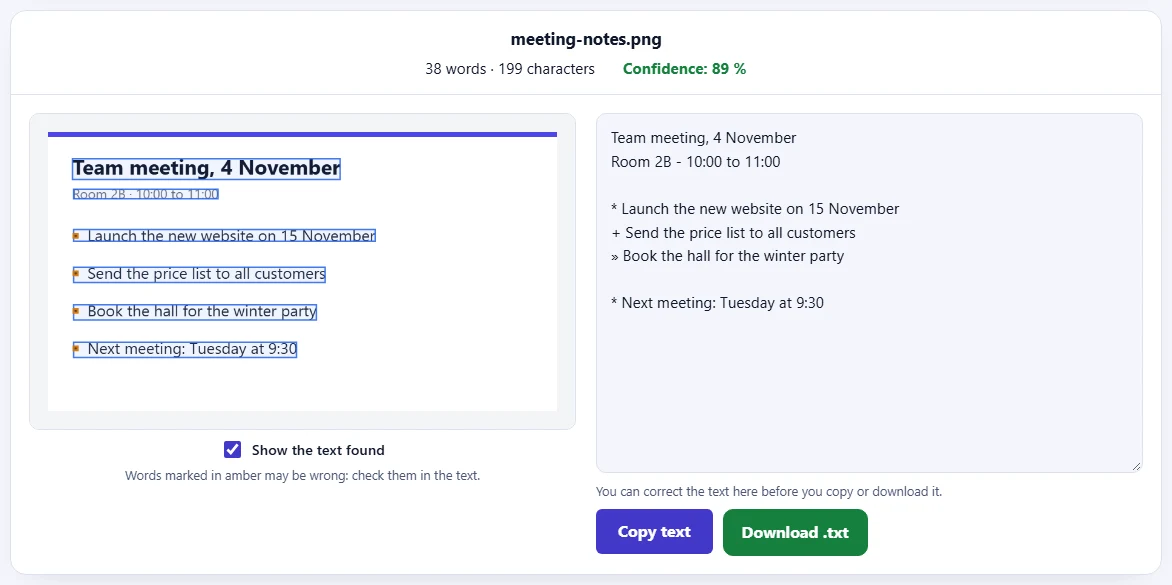
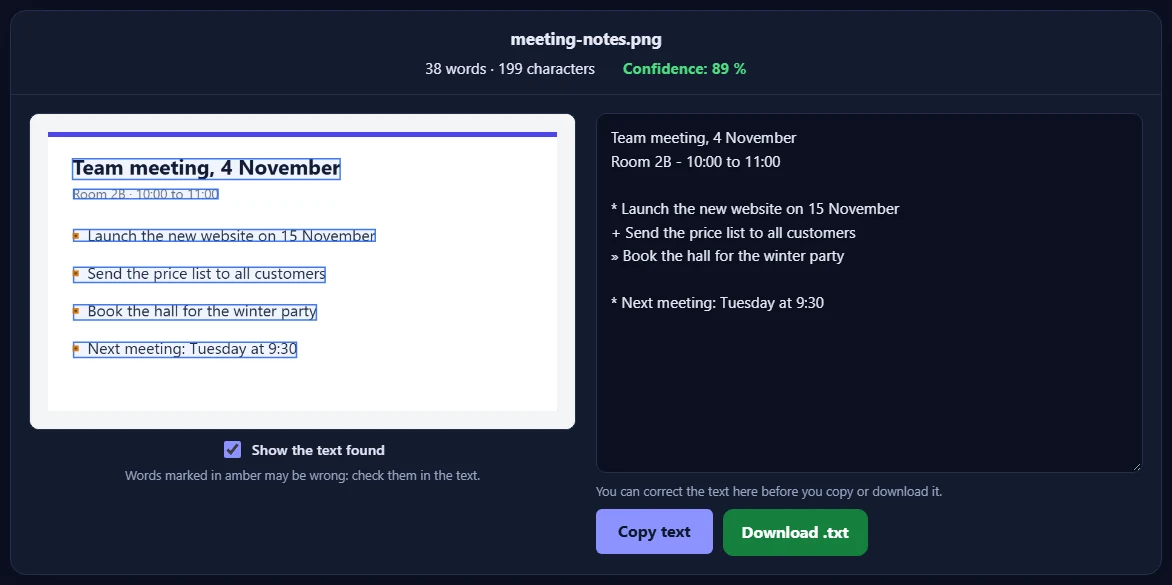
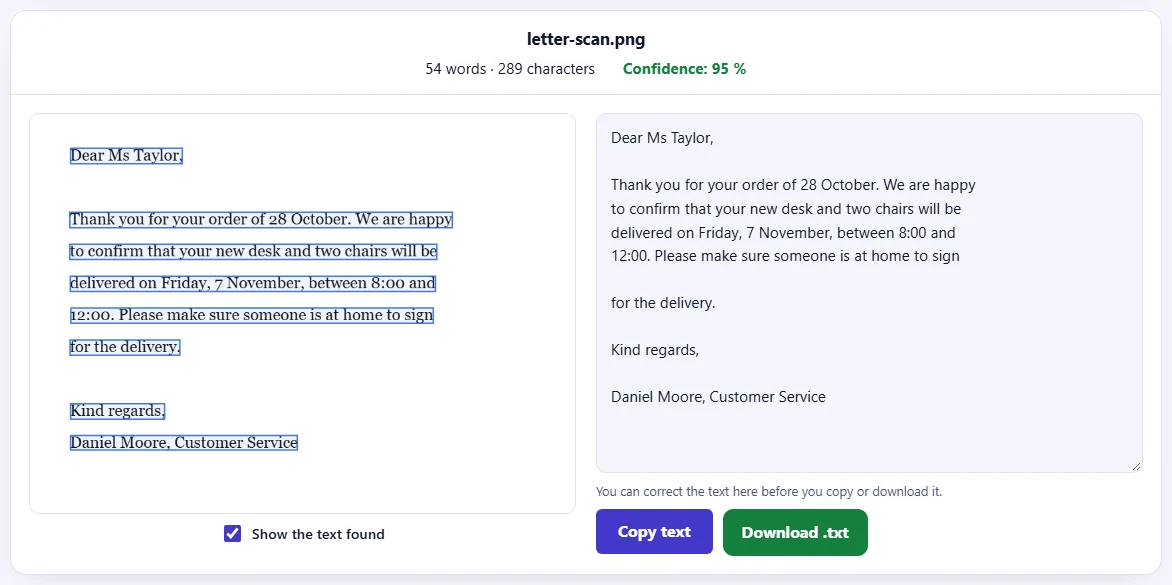
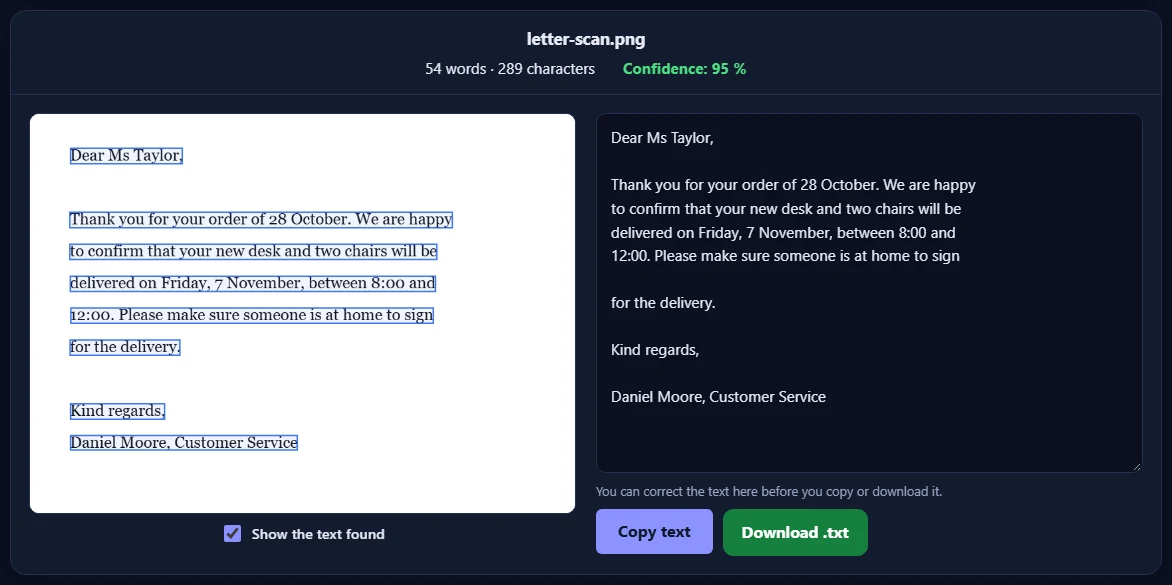
Drop the image on the tool, paste it with Ctrl+V, or click Choose images. Pick the language of the text, then click Extract text. The text appears next to the image, where you can correct it, copy it or download it as a .txt file.
Which languages can it read?
English, Spanish, German, French, Urdu, Hindi, Arabic, Chinese (Simplified), Japanese and Korean. For text that mixes English with another language, tick Also read English. Urdu and Arabic are shown right to left.
How accurate is it?
Clear printed text, such as screenshots and scanned documents, is usually read almost perfectly. Results are weaker for handwriting, very small or blurry text, unusual fonts and photos taken at an angle. Words the reader is not sure about are marked in amber on the image, so you know what to check.
How do I get better results?
Use a sharp, well-lit picture taken straight on, and crop away what is not text. Make sure the right language is chosen. For a sign, a label or a page with scattered words, set Layout to Scattered text; for a single paragraph, try One block of text. Changing these and clicking Read again is free.
Which image formats work?
JPG, PNG, WebP, GIF, BMP and HEIC (iPhone photos). You can add up to 20 images at a time; each one is read separately, and Copy all or Download all gives you the text of every image in one go.
Are my images uploaded?
No. The text is read by a program that runs inside your browser, so your images and their text never leave your device. The first time, your browser downloads the reader and the language data from our site and keeps them for next time. Our server only records that an image was read, along with your network address, so the daily limit shown above the tool can be applied.
What counts towards the daily limit?
Each image counts once, the first time text is found in it. Reading it again with another language or layout is free, and images where no text is found are never counted.